Owner's Manual
About SuperOS-900
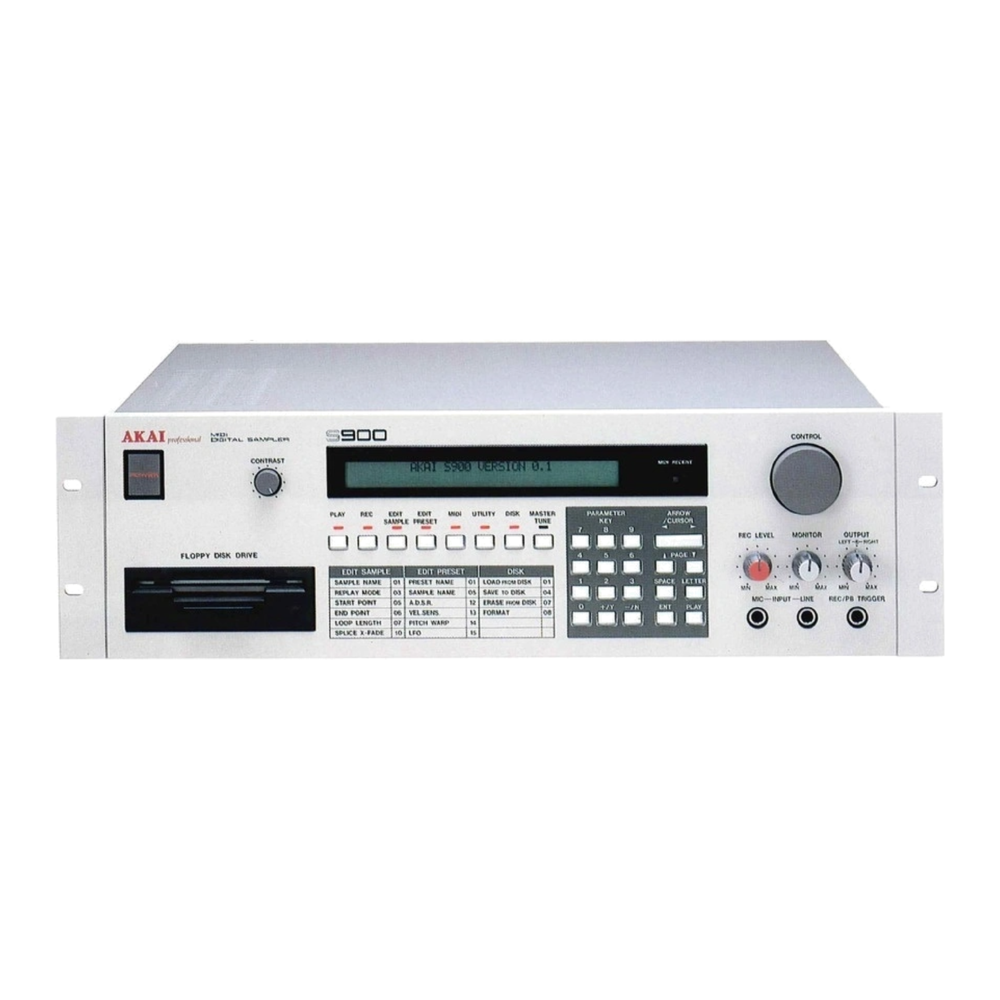
SuperOS-900 is a new operating system for the S900 sampler. It loads from a boot disk when the sampler is switched on, exactly as the original operating system does, so nothing inside the instrument is changed. Boot your original disk and the S900 is stock again.
Everything the S900 already does is still there and works the same way, with the full 464 KB of sample memory. SuperOS adds new pages and new MIDI controls on top, and disks saved on it load on a stock S900.
What SuperOS adds
| Feature | What it does | Section |
|---|---|---|
| Timestretch | Makes a sample longer or shorter without changing its pitch. | 7 |
| Zero-crossing snap | ENT on a start, end or loop field moves it to the nearest zero crossing. | 8 |
| Chops | Slices of a sample that share its memory, so a break cut into eight costs the memory of one. | 9 |
| Keygroup Start and End | Each keygroup plays its own part of a sample, forwards or backwards. | 10 |
| Portamento | Notes glide from the previous note, with a time per keygroup. | 10 |
| Anti-aliasing cap | Opens the anti-aliasing filter for a brighter, rawer top end, per keygroup. | 10 |
| Learn by playing | Set key ranges and pick keygroups from a MIDI keyboard. | 11 |
| Instant attack | Attack 0 opens the note at full level. | 12 |
| Safer, faster disks | Every save is checked; loads and boot are faster; erasing actions ask first. | 12 |
| Transwave | The loop moves through the sample while the note plays, driven by the LFO and the mod wheel. | 13 |
| Live MIDI control | Filter, loudness, pitch, start and end points, envelopes and LFO over MIDI controllers, on notes that are already sounding where it matters. | 14, 15 |
| MIDI while recording | MIDI keeps working while a recording is armed and after an error message. | 16 |
Sample Memory and What Was Removed
On the S900 the operating system and the samples share one memory. To keep the full stock 464 KB of sample memory, SuperOS makes its room by removing a few rarely used stock features. A disk filled to the full stock memory loads complete, with all 68 objects.
| Removed | What it means |
|---|---|
| Drum trigger inputs | The optional drum trigger board does nothing and its pages are gone. |
| RS232 serial port | The serial port and its page (MIDI *05) are gone. MIDI, including sample and program dumps, is not affected. |
| Compressed saves | Samples always save uncompressed. Compressed disks you already have still load. The DISK compression page is gone. |
| VX pages | EDIT SAMPLE *14 VX-TIME SKEW and *15 VX create are gone. Page *14 is now the timestretch. |
| Service monitor | The service engineer's memory monitor, reached only after a machine fault, is gone. A fault now shows SYSTEM ERROR. |
None of this changes the sound. If you need one of these features, boot your original disk: everything stock comes back until the next power-on.
The Download
| File | What it is |
|---|---|
| v5.0.1/SuperOS-900-v5.0.1.hfe | The boot disk as an HFE image, for a USB floppy emulator. This is the file most owners need. |
| v5.0.1/AUTOBOOT.HFE | The same boot disk, already named for autoboot. |
| v5.0.1/SuperOS-900-v5.0.1.img | The same disk as a raw 800 KB image, for other emulators or for writing a real floppy. |
| v5.0.1/SuperOS-900-v5.0.1.bin | The operating system file on its own, for building your own boot disk. |
| SuperOS-900-Installation.pdf | This manual. |
| SuperOS-900-Shortcut-Guide.pdf | One page per function: the keys in order and the display they give. |
| README.txt | The short version: what is new and how to install. |
| LICENSE.txt | Your licence to use the firmware. |
| SHA256SUMS.txt | Checksums, so you can confirm every file copied intact. |
Installing SuperOS
These steps are for an S900 with a USB floppy emulator fitted. Installing means copying one file to the emulator's USB stick or SD card. The S900 needs the version 1.2 EPROM.
| Operation | Result | Notes | |
|---|---|---|---|
| 1 | Copy SuperOS-900-v5.0.1.hfe to the top level of the USB stick. | The image is on the stick. | Not inside a folder. |
| 2 | Put the stick in the emulator and switch the S900 on. | ||
| 3 | Select the SuperOS image with the emulator's buttons. | ||
| 4 | Switch the S900 off and on again. | The disk loads for a few seconds and the SuperOS banner appears. | The S900 reads its operating system only at power-on. |
Autoboot
If your emulator is set up to mount AUTOBOOT.HFE by itself at power-on, SuperOS can boot with no button presses. This only works if autoboot is already set up on your emulator.
| Operation | Result | Notes | |
|---|---|---|---|
| 1 | Copy the old AUTOBOOT.HFE from the stick to your computer, or rename it on the stick. | The old boot disk is kept. | Without this backup the old disk is lost. |
| 2 | Copy v5.0.1/AUTOBOOT.HFE to the top level of the stick. | ||
| 3 | Switch the S900 on. | SuperOS loads by itself. |
SuperOS-900 is now installed.
Starting Up
The banner
When SuperOS has loaded, the top line of the display ends in SUPER 5.0.1 and the bottom line reads TIMESTRETCH EDITION SUPEROS303.COM.
If you see the old banner, a different image is selected, or the S900 was not switched off and on after selecting it. On the DISK pages the operating system file on the boot disk is named SUPER5.0.1.
Getting around the pages
SuperOS uses the S900's own way of working. Pages are named by section and number: EDIT SAMPLE *14 means press EDIT SAMPLE, then go to page 14.
- Press a section key: PLAY, REC, EDIT SAMPLE, EDIT PRGRM, MIDI, UTILITY or DISK.
- With the cursor on the page number at the far left, type the two digits of the page, or step with the PAGE keys.
- Move the cursor to a field with the cursor keys.
- Turn the CONTROL knob or type the value. Switches take ON/+ and OFF/-. Fields marked (ENT), Do or Auto D run when you press ENT on them.
Where Everything Is
Every page SuperOS adds or changes. All other pages are stock.
| Page | What is there | Section |
|---|---|---|
| EDIT SAMPLE *06, *07, *08 | Start, end and loop length: ENT snaps to a zero crossing. | 8 |
| EDIT SAMPLE *07 | Also *Chop(ENT) and *Name. | 9 |
| EDIT SAMPLE *14 | STRETCH (was VX-TIME SKEW). | 7 |
| EDIT PROGRAM *04 | The keygroup page: Start, End, Porta and AA beside the stock velocity fields. | 10 |
| EDIT PROGRAM *05 | Key ranges can be played in. | 11 |
| EDIT PROGRAM *13 | LFO depth page: *EndLFO, the transwave depth. | 13 |
| UTILITY *01, *02 | The two SUPEROS pages: controller numbers and the knob-to-MIDI switch. | 14 |
| MIDI *01 to *04 | Stock. The RS232 page *05 is gone. | 2 |
| DISK *01, *08 | Clear memory and load, and FORMAT, ask before they erase anything. The compression page is gone; DISK ends at *08. | 12 |
Timestretch
EDIT SAMPLE *14
The stretch makes a new sample that is longer or shorter than the original but at the same pitch. The original is not changed.
*14 STRETCH *New name NEW SAMPLE *200% *D-time 1000 *Auto D_ *Mon1/pol2 2 *Do_
| Field | Range | What it does |
|---|---|---|
| New name | 10 characters | The name of the new sample. |
| % | 1 to 999 | The new length. 100 keeps it, 200 doubles it, 50 halves it. Default 200. |
| D-time | 5 to 9999 | The grain length in sample words. Short values suit drums, long values sustained sounds. Default 1000. |
| Auto D | ENT | Works out a D-time from the sample and puts it in the D-time field. |
| Mon1/pol2 | 1 or 2 | The crossfade between grains: 1 is linear, 2 equal-power. 2 is usually smoother on tonal sounds. Default 2. |
| Do | ENT | Runs the stretch. |
| Operation | Result | Notes | |
|---|---|---|---|
| 1 | Press EDIT SAMPLE. On *01, turn the knob to the sample. | The sample is selected. | |
| 2 | Go to page *14. | *14 STRETCH | |
| 3 | Cursor to New name and type a name. | If the name is the selected sample's own, its last character is changed so it is a new sample. | |
| 4 | Cursor to %, set 150. | ||
| 5 | Set D-time, or press ENT on Auto D. | ||
| 6 | Set Mon1/pol2 to 1 or 2. | ||
| 7 | Cursor to Do and press ENT. | The section lamp stays lit while it works. The new sample is then selected on *01. | If the name is already used by another sample, the S900 asks first (section 12). |
- A looped sample keeps its loop, with the loop length scaled by the same amount.
- A stretched sample can be stretched again.
- The page keeps its values while you work, until the sampler is switched off.
- When the new sample will not fit, the display shows OOPS! Memory sample space is full. Lower the %, or delete samples you do not need.
- When the D-time is too short for the %, the display shows ENOUGH ALREADY! Raise the D-time.
Zero-Crossing Snap
EDIT SAMPLE *06 *07 *08
A point that sits on a zero crossing does not click. Set the point with the knob or the digits as usual, then press ENT with the cursor on the Coarse or Fine field: the point moves to the nearest zero crossing within 64 words.
- *06 START POINT and *07 END POINT: the point itself snaps.
- *08 LOOP LENGTH: the loop's start (end point minus loop length) snaps, so the loop joins at a crossing.
Turning the knob or typing digits works exactly as before; only ENT snaps.
Chopping Without Copying
EDIT SAMPLE *07
A chop is a new sample that plays the memory of the sample it was cut from instead of a copy of it. It has its own start, end, loop, pitch, loudness and replay mode, so it can be one hit of a break. Eight chops of one break use the memory of one break.
Every chop's name starts with #, so you can tell a chop from an ordinary sample in every list.
*07 END POINT *Coarse *Fine *Chop(ENT) (002,203-040,000) 40,000 *Name#APACHE02
| Operation | Result | Notes | |
|---|---|---|---|
| 1 | On EDIT SAMPLE *01, select the break. | ||
| 2 | On *06, set the start of the first slice. | ENT snaps it to a zero crossing. | |
| 3 | On *07, set the end of the slice. | ||
| 4 | Cursor to *Chop(ENT) and press ENT. | A chop is made under the name shown after *Name, for example #APACHE01. | The break stays selected and the name moves on to the next free number. |
| 5 | Move the end (and the start on *06) to the next hit and press ENT on *Chop again. | The next chop, #APACHE02. | Repeat for every slice. |
The break is now cut into chops. Map them to keys like any other samples.
Chop names
The name offered is #, the first six characters of the sample's name, and the lowest free number from 01 to 99. To use your own name, cursor to *Name, type up to eight characters after the # and press ENT to leave the name, then cursor back to *Chop(ENT). Pressing the left cursor key on the first character also leaves the name. A name that is already in use is refused with Used and nothing is made.
You can also make a chop on EDIT SAMPLE *01: a copy to a name that starts with # makes a chop of the selected sample. A copy to a plain name makes a full copy, as on a stock S900, and is how you turn a chop back into an independent sample.
What a chop cannot do
- Discard and half-bandwidth resample (*09) and reverse (*05) change the shared memory itself, so they refuse on any sample that shares memory, chop or original, with Shared. Make a plain copy first.
- Recording to the name of a shared sample records into free memory instead of over the shared audio.
- Deleting is safe in any order: the memory is freed when the last sample using it is deleted.
Chops on disk
Save the break and its chops together with DISK *04 (the whole memory). The break saves as a normal sample and each chop as a one-block file that refers to it by name. When the disk is loaded, the chops join their break again and still share its memory. A chop saved on its own as a single sample is saved as a full sample.
The Keygroup Page
EDIT PROGRAM *04
*04 *Start 0,000 *End 0,000 *Porta 0 *KG1 *Vsw 128 *Xfd OFF *Mix 64 *AA 0
Page *04 holds the stock velocity fields (Vsw velocity switch, Xfd velocity crossfade, Mix) and four SuperOS fields for the selected keygroup. As on every keygroup page, KG picks the keygroup and KG 00 edits every keygroup of the program at once. The cursor runs KG, Start (coarse, fine), End (coarse, fine), Porta, Vsw, Xfd, Mix, AA.
| Field | Range | What it does |
|---|---|---|
| Start | 0,000 to 16,383 | Where the keygroup's notes start in the sample. 0,000 is the sample's own start point, 16,383 its own end point, whatever the sample's length. |
| End | 0,000 to 16,383 | Where its notes end, on the same scale. 0,000 is off: the sample's own end point plays. |
| Porta | 0 to 127 | Portamento time: 0 is off, 1 the fastest glide, 127 the slowest. |
| AA | 0 to 3 | Anti-aliasing cap: 0 follows the pitch (stock), 1 and 2 open it one or two octaves higher, 3 switches it off. |
Start and End
Each number is shown as coarse,fine: coarse 0 to 16 and fine 0 to 999. Move between the two halves with the cursor keys and set each with the knob or the digits. Anything typed above 16,383 plays as 16,383. The sample itself is never changed, so EDIT SAMPLE still shows its own points, and two keygroups can play different parts of the same sample at the same time. The new points are heard from the next note.
- The scale always runs between the sample's own start and end points, so on a chop it covers just the slice.
- The two points are kept at least 100 words apart. Start moves to make room; End moves only at the edge of the sample.
- Set End below Start and the note plays backwards from Start to End. Start 16,383 with End 0,001 plays the whole sample backwards.
Portamento
With Porta above 0, each new note glides from the pitch of the previous note on the same MIDI channel. The glide is measured in semitones, so an interval takes the same time anywhere on the keyboard, and each voice glides on its own, so chords slide together.
Anti-aliasing cap
The S900 limits each voice's filter to stay below the playback rate. AA 1 and 2 raise that limit; AA 3 removes it, so with Filter at 99 low-rate and pitched-down samples keep their raw, aliased top end. It cannot push the hardware past its normal limits.
Key Ranges and Keygroups by Playing
EDIT PROGRAM, with a MIDI keyboard connected
| Operation | Result | Notes | |
|---|---|---|---|
| 1 | Press EDIT PRGRM and go to page *05. | ||
| 2 | Cursor to Low key. | ||
| 3 | Play the lowest note of the range. | Low key takes the note and the cursor moves to Hi key. | The note you play sounds. |
| 4 | Play the highest note. | Hi key takes it. |
| Operation | Result | Notes | |
|---|---|---|---|
| 1 | On any EDIT PROGRAM page, hold EDIT PRGRM and play a note. | The keygroup that plays that note becomes the selected one. | You stay on the same page. |
| 2 | Play the same note again while holding the key. | The next keygroup that plays it is selected. | For overlapping keygroups. |
Attack, Disks and Warnings
Instant attack
On EDIT PROGRAM *09 ENV, Attack 0 now opens the note at full level the moment it starts. Attack 0 on the filter envelope (*17 VCF) likewise starts the filter envelope at full level. Attack 1 is the old fastest attack, which softens the first moment of the note.
Checked saves
Every save is read back from the disk and checked straight away. A part that does not read back correctly is written again once. Only if that fails too is a disk error shown, while the sound is still in memory. When loading, a bad read is tried five times instead of three.
Faster loading
Samples and programs load roughly four to five times faster than stock, and the operating system itself boots about three times faster.
Actions that ask first
These actions show a warning on the top line first. Press the same key again to go ahead, or move the cursor to cancel. Cursor and page keys never set them off.
| Action | Warning |
|---|---|
| DISK *01 Clear memory and load | THIS CLEARS MEMORY! Press again to load |
| DISK *08 format | FORMAT ERASES THE DISK! Press again = go |
| A stretch or crossfade whose new name belongs to another sample | Name in use! Press again to replace it |
Transwave
EDIT PROGRAM *13, on a looping or alternating sample
A looped sample normally repeats one loop. The transwave moves that loop through the sample while the note plays, so you hear the sound change instead of repeat. It moves by whole loop lengths only, so the loop always joins in step and the move does not click.
The sample and its points are never changed. The LFO swings the loop back and forth, and the mod wheel sets where in the sample it sits. With a depth set, a note starts on its loop instead of first playing through the sample.
*13 LFO DEP *Aft.tch *Mod.whl *EndLFO *KG1 0 50 20
| Operation | Result | Notes | |
|---|---|---|---|
| 1 | On EDIT SAMPLE *04, set the replay mode to Looping or Alternating. | One-shot samples never move. | |
| 2 | On EDIT SAMPLE *08, set a short loop length. | See "The loop length" below. | |
| 3 | Press EDIT PRGRM, go to *13 and pick the keygroup on KG. | KG 00 sets every keygroup. | |
| 4 | Cursor to *EndLFO and set a depth from 1 to 99. | 0 is off: the sample plays as stock. | |
| 5 | Play a note and move the mod wheel. | The loop moves through the sample: the LFO swings it, the wheel places it. | The LFO's rate and delay are the stock ones on *12. |
Depth and the mod wheel
The mod wheel is the position: wheel down puts the loop on the first loop-length of the sample, wheel up on the last, whatever the loop length. The depth sets how far the LFO swings the loop either side of that position. With the wheel still and the depth up, the loop sweeps on its own; with a low depth, you place it by hand with the wheel. The position never runs past either end of the sample.
The depth is a keygroup setting and saves with the program. A program from a stock S900 or an older SuperOS loads with it at 0. CC 84 sets it over MIDI.
Wheel mode
Send CC 89 at 64 or above and the keygroups on that channel switch to wheel mode. The LFO no longer moves the loop. With the wheel at 64 or above the sample's own loop plays; turning the wheel down walks the loop back towards the start of the sample, a whole loop at a time, and the depth sets how far: at depth 99, wheel 0 reaches the first loop-length. CC 89 below 64 switches back. The mode saves with the program.
The loop length
The number of places the loop can go is the length between the sample's start and end points divided by the loop length. A 10,000-word loop in a 50,000-word sample has five places, which sounds like five jumps. A 200-word loop in the same sample has 250, which sounds like a sweep. Loops of roughly 20 to 300 words work well, and a sustained sound looped on one cycle works best. A drum break is not a good source: moving a loop through it clicks by nature.
Alternating and chops
On an Alternating sample the moving loop plays forwards then backwards, so it has no join at all. On a chop the loop stays between the chop's own start and end points, inside its slice.
When it does not move
- One-shot samples, and samples recorded or resampled at half bandwidth.
- Loops shorter than 32 words or 32,768 words and longer.
- A loop longer than the length between the sample's start and end points.
- On an Alternating sample, a position that would cross the middle of sample memory keeps the previous position. With short loops this is one place out of hundreds.
The SUPEROS Pages
UTILITY *01 *02
Press UTILITY. Pages *01 and *02 are the SUPEROS pages: which MIDI controller does what, and whether the panel knob sends MIDI. A new number takes effect at once.
*01 SUPEROS *StartCC 13 *PortaCC 5 *LoudCC 11 *PitchCC 12 *EndCC 14
*02 SUPEROS *FiltKnob OFF *AAcapCC 16
| Field | Default | What the controller does |
|---|---|---|
| StartCC | 13 | The keygroup Start point (section 10). Its fine half is StartCC + 32, CC 45 by default. |
| PortaCC | 5 | The keygroup Porta time, 0 to 127. |
| LoudCC | 11 | Loudness: CC 0 to 100 is −50 to +50, so CC 50 is no change. |
| PitchCC | 12 | Transpose in quarter semitones: CC 64 is no change. |
| EndCC | 14 | The keygroup End point (section 10). 0 switches it off. |
| FiltKnob | OFF | ON sends panel Filter and Loudness moves out over MIDI (below). |
| AAcapCC | 16 | The keygroup AA cap: CC 0 to 31 is 0, 32 to 63 is 1, 64 to 95 is 2, 96 to 127 is 3. 0 switches it off. |
Sending the knob to MIDI
With the cursor on FiltKnob, press ON/+. Now turning a Filter field on an EDIT PROGRAM page sends CC 74 with the value shown (0 to 99), and turning a Loudness field sends LoudCC with the value plus 50 (Loudness 0 sends 50), on the basic MIDI channel. A sequencer records the moves and can play them back.
Playing It Over MIDI
Every SuperOS controller acts on the keygroups of the current program that receive on the channel it arrives on. A controller and the matching panel field set the same value, so whichever moved last wins, and what you hear is what saves with the program.
Filter
CC 74 sets the keygroup Filter, using the panel's own scale: CC 63 is Filter 63, and 100 to 127 act as 99. The filter now moves on notes that are already sounding, from the panel and from MIDI, and a CC sent with nothing playing is kept for the next note. The number 74 is fixed.
Loudness and pitch
LoudCC sets the keygroup Loudness and moves notes that are already sounding without restarting them. The panel Loudness field does the same on held notes. Loudness is stored in the program; the stock MIDI volume (CC 7) is a separate control and still works.
PitchCC transposes the keygroups: CC 64 is no change, each step is a quarter semitone, so CC 0 is 16 semitones down and CC 127 is 15.75 up. Sounding notes retune at once. The pitch wheel works as before.
Start and end points
StartCC sets the keygroup Start point on the 16,384-step scale of page *04, heard from the next note. Sent alone it works as a plain 128-step controller: CC 0 is the sample's own start. Sent as a 14-bit pair with its fine half (StartCC + 32) it reaches every step. A StartCC above 95 has no fine half.
EndCC sets the keygroup End point in 128 steps: CC 127 is the sample's own end point and each step down is one 128th of the way back towards its start. On a one-shot sample it works as a length control. On a looped sample the loop hangs from the end point, so moving the end moves the loop through the sample from note to note.
Portamento and the AA cap
PortaCC writes the keygroup Porta time (0 off, 127 slowest) and AAcapCC the keygroup AA cap, as on page *04.
Envelopes, LFO and transwave
These controllers are always on; there is nothing to set up. They write the keygroup values straight away, and a page shows the new value the next time it is drawn. Values above a parameter's range act as its top value.
| CC | Sets | CC | Sets |
|---|---|---|---|
| 73 | Envelope attack (0 to 99) | 80 | Filter envelope attack (0 to 99) |
| 75 | Envelope decay (0 to 99) | 81 | Filter envelope decay (0 to 99) |
| 79 | Envelope sustain (0 to 99) | 82 | Filter envelope sustain (0 to 99) |
| 72 | Envelope release (0 to 99) | 83 | Filter envelope release (0 to 99) |
| 76 | LFO rate (0 to 99) | 85 | Filter envelope amount (0 to 100 = −50 to +50) |
| 77 | LFO depth (0 to 99) | 86 | LFO desync (64 and up = ON) |
| 78 | LFO delay (0 to 99) | 84 | Transwave depth (0 to 99) |
| 1 | Mod wheel: transwave position | 89 | Transwave wheel mode (64 and up = ON) |
Recording, Errors and Memory Access
MIDI while a recording is armed
Arming a recording on the REC pages no longer switches MIDI off. While the S900 waits to record, a computer can still read and write its memory over MIDI, and can start the take in any START WITH mode. The take keeps the name you gave it.
Error messages
An OOPS message or SYSTEM ERROR no longer leaves the machine frozen: sounding notes and the panel keep running. Press a section key to clear the message; MIDI then works as normal. SYSTEM ERROR means the processor hit a fault. It does not happen in normal use: note what you did last and switch off and on before you carry on.
Memory access over MIDI
The S900 answers three system-exclusive service messages, kept unchanged in SuperOS. With a MIDI cable each way, your own software can read and write the running sampler's memory: press panel keys, read the display and the list of samples and programs, change keygroup values and start a recording.
| Op | Name | Payload | What happens |
|---|---|---|---|
| 0E | PEEK | address lo, hi; length lo, hi | The sampler sends that memory back on MIDI OUT, as a message with op 0C. |
| 0C | POKE | address lo, hi; 00, 00; data | The data is written from the address up. No reply. |
| 0D | CALL | address lo, hi | The processor jumps to the address. No reply. |
F0 47 <ch> <op> 40 00 00 <payload> <checksum> F7
- <ch> is the basic MIDI channel minus one: 00 for channel 1, the start-up setting. With omni on, any channel is accepted.
- Each payload byte is sent as two bytes: its low seven bits, then its top bit.
- The checksum is the exclusive-OR of all the payload bytes as sent. A PEEK with a wrong checksum gets no reply.
- Send each message in one burst and wait for a PEEK reply before the next message.
- PEEK at most 64 bytes and POKE at most 16 bytes per message. Never PEEK length 0: the sampler sends all 64 KB.
- POKE has no reply; PEEK the range afterwards to check it.
Display Messages
| Message | Meaning | What to do |
|---|---|---|
| THIS CLEARS MEMORY! Press again to load | DISK *01 will clear memory before loading. | Press again to load, or move the cursor. |
| FORMAT ERASES THE DISK! Press again = go | DISK *08 will erase the disk. | Press again to format, or move the cursor. |
| Name in use! Press again to replace it | A stretch or crossfade would replace another sample of that name. | Press again to replace it, or change the name. |
| OOPS! Memory sample space is full. | The new sample does not fit. | Lower the stretch %, or delete samples. |
| ENOUGH ALREADY! | The stretch D-time is too short for the %. | Raise the D-time. |
| Used | The chop name is already taken. | Change the *Name field. |
| Shared | Discard, resample or reverse on a sample that shares its memory. | Make a plain copy on *01 and edit that. |
| SYSTEM ERROR | The processor hit a fault. | Press a section key, then switch off and on. |
MIDI Controller Chart
The SuperOS controllers as they are at power-on. Numbers marked UTILITY can be changed on the SUPEROS pages.
| CC | Controls | Range | Set on |
|---|---|---|---|
| 1 | Transwave position (mod wheel) | 0 to 127 | fixed |
| 5 | Portamento time | 0 off, 1 to 127 | UTILITY *01 |
| 11 | Loudness | 0 to 100 = −50 to +50 | UTILITY *01 |
| 12 | Transpose | 64 = none, quarter-semitone steps | UTILITY *01 |
| 13, 45 | Start point, coarse and fine | 14-bit | UTILITY *01 |
| 14 | End point | 127 = sample end | UTILITY *01 |
| 16 | AA cap | four bands of 32 | UTILITY *02 |
| 72, 73, 75, 79 | Envelope release, attack, decay, sustain | 0 to 99 | fixed |
| 74 | Filter | 0 to 99 | fixed |
| 76, 77, 78 | LFO rate, depth, delay | 0 to 99 | fixed |
| 80 to 83 | Filter envelope attack, decay, sustain, release | 0 to 99 | fixed |
| 84 | Transwave depth | 0 to 99 | fixed |
| 85 | Filter envelope amount | 0 to 100 = −50 to +50 | fixed |
| 86 | LFO desync | 64 and up = ON | fixed |
| 89 | Transwave wheel mode | 64 and up = ON | fixed |
The stock MIDI controls (volume, sustain pedal, pitch wheel and the rest) work as on a stock S900.
Disks and Compatibility
- Stock S900 disks load and save exactly as before.
- Disks and programs saved on SuperOS 5.0.1 load on a stock S900 and on SuperOS 4.0.3 and later, and the other way round. A stock S900 ignores the SuperOS keygroup settings.
- Chops need SuperOS 5.0 or later to join their break again (section 9).
- Samples are saved uncompressed. A full memory still fits on one disk.
- The SUPEROS controller settings are not saved to disk; everything on the keygroup pages is saved with the program.