Owner's Manual
About superOS-606
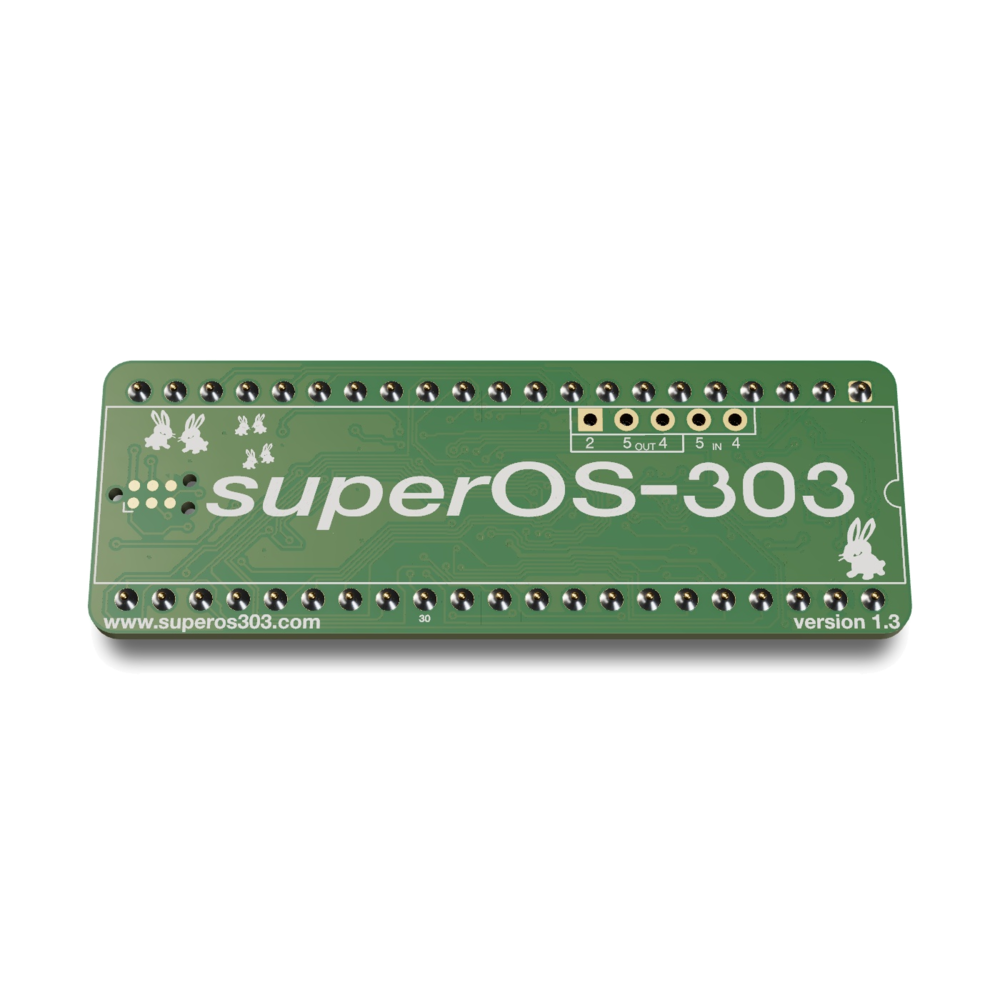
superOS-606 is replacement firmware for the TR-606. It runs on the SuperOS CPU board, which plugs into the socket of the original CPU. It drives the 606's own circuits unchanged: the panel, the LEDs, the TEMPO clock and the voice board. The drums sound exactly like a stock 606.
Pattern Write, Pattern Play and the two Track modes work the way you know them. On top of that, the FUNCTION button opens a set of tools: patterns of up to 64 steps, a loop length for each voice, polymeter, swing, probability, ratchets, live mutes, reslicing, an arpeggiator and play direction.
The Mode and Instrument dials keep their usual jobs. Everything new is reached with FUNCTION and the step buttons, so nothing on the panel changes meaning.
superOS-606 adds MIDI in and out, over the MIDI jacks and over USB-C. It can follow MIDI clock, play its voices from MIDI notes, and work with the web pattern editor on this site. It can also boot the 606's original program instead (see Stock Mode).
The Panel
Controls
| Control | What it does |
|---|---|
| STEP 1–16 | Steps when writing; patterns when selecting; tools and settings in the menus |
| RUN/STOP | Starts and stops the sequencer |
| WRITE/NEXT | Tap write; adds patterns to tracks; works as a shift key in some tools |
| FUNCTION | Opens the tools (Pattern Write) and, with PATTERN CLEAR, the Config menu |
| PATTERN CLEAR | Erases patterns, steps and track entries |
| PATTERN GROUP | Switches between group I and II, or pages through 16-step sections |
| Mode dial | Pattern Write, Pattern Play, Track Write, Track Play |
| Instrument dial | The voice to edit; in the Track modes, the track number 1–8 |
| SCALE switch | Read only inside some tools (see Scale and Swing) |
| TEMPO knob | Sets the tempo when the 606 runs on its own clock |
FUNCTION + STEP means: hold the first control, then press the second. A tap is a short press and release.
The Instrument Dial
The first position is the accent track. The other seven are the drum voices. Several tools also use steps 1–8 in this same order.
| Position / Step | Instrument |
|---|---|
| 1 | Accent (AC) |
| 2 | Bass drum (BD) |
| 3 | Snare drum (SD) |
| 4 | Low tom (LT) |
| 5 | High tom (HT) |
| 6 | Cymbal (CY) |
| 7 | Open hi-hat (OH) |
| 8 | Closed hi-hat (CH) |
Power-On and Memory
There are 32 patterns, in group I (1–16) and group II (17–32), and 8 tracks. At power-on the unit always starts on pattern 1 of group I.
Patterns, tracks and settings are kept when the power is off. Edits are saved when the sequencer stops, when you turn the Mode dial while stopped, and when you clear a pattern. Settings are saved when you leave the Config menu. There is no save button to remember.
These live settings are not saved and reset at power-on: mutes, play direction, the global length, the arpeggiator and the copy clipboard.
Selecting and Clearing Patterns
Pattern Write, stopped
Selecting a Pattern
Press PATTERN GROUP to choose group I or II, then press a STEP button to choose the pattern to edit. Its LED blinks in time with the tempo.
Clearing a Pattern
Hold the pattern's STEP button and press PATTERN CLEAR. Hold several step buttons to clear several patterns at once. A cleared pattern is empty, 16 steps long, scale 1, with no swing, chances, ratchets or voice lengths.
Writing a Pattern
Pattern Write, running
Steps are written while the pattern plays, so you hear each change as you make it. The step LEDs show the selected voice's steps, with the chase light running over them.
| Operation | Result | Notes | |
|---|---|---|---|
| 1 | Set the Mode dial to Pattern Write. With the sequencer stopped, press a STEP button to pick the pattern. | The pattern's LED blinks. | Clear it first if it is not empty. |
| 2 | Press RUN/STOP. | The pattern loops; the chase light runs. | |
| 3 | Turn the Instrument dial to BD. Press steps 1, 5, 9 and 13. | The bass drum plays on each beat. | Press a lit step again to remove it. |
| 4 | Turn the dial to SD. Press steps 5 and 13. | The snare joins on beats 2 and 4. | Each voice keeps its own steps. |
| 5 | Turn the dial to CH. Press every odd step. | Closed hi-hat on eighth notes. | |
| 6 | Press RUN/STOP. | The sequencer stops and the pattern is saved. |
One pattern is now written.
Patterns longer than 16 steps are shown 16 steps at a time. See Length and Sections.
Accent
Pattern Write, running
Accent is one track for the whole pattern, as on the stock 606. Turn the Instrument dial to the accent position and set steps the same way as for a voice. Every voice that plays on an accented step plays louder, by the amount set with the ACCENT knob.
Tap Write and Chase Delete
Pattern Write, running
Tap Write
Press WRITE/NEXT in time with the music. The selected voice is written on the step that is playing at that moment.
Chase Delete
Hold PATTERN CLEAR. The selected voice's steps are erased as the chase light passes them, across the whole pattern. Release it when the part sounds right. Other voices are not touched.
Playing and Chaining Patterns
Pattern Play
Selecting Patterns
Press a STEP button to choose a pattern from the shown group, and PATTERN GROUP to switch groups. When stopped the change is immediate. While running, the new pattern waits until the playing pattern reaches its end; its LED blinks fast while it waits. The playing pattern's LED blinks in quarter notes.
Chains
Hold one STEP button and press another. All patterns between the two, inclusive, play in order and loop. The chain's LEDs stay lit. A chain picked while running starts after the current chain has played to its end. Press a single step to return to one pattern.
The FUNCTION Tools
Pattern Write, running or stopped
- Hold FUNCTION: the step LEDs show the tool map. Lit steps are tools; the open tool blinks.
- FUNCTION + STEP: opens that tool. Release FUNCTION; the panel now works the tool.
- Tap FUNCTION: closes the tool. Turning the Mode dial closes it too.
The tools exist only in Pattern Write. In the other modes FUNCTION does nothing on its own. The Instrument dial picks the voice inside every tool.
| Step | Tool | Does |
|---|---|---|
| 1 | Length | Pattern length, voice length, global length |
| 2 | Scale / Swing | Step timing and swing |
| 3 | Copy | Clear, copy and paste the pattern |
| 4 | Transform | Shift, reverse or randomize a voice |
| 5 | Probability | Chance that a step plays |
| 6 | Ratchet | Repeat a step 2, 3 or 4 times |
| 7 | Poly | Bar-reset or polymeter per voice |
| 8 | Mute | Mute voices live |
| 9 | Reslice | Loop a few steps live |
| 10 | Arp | Live drum sequence |
| 11 | Direction | Forward, backward, random, ping-pong |
| 12 | Generate | Random fill for a voice |
| 13 | Save | Lit, but does nothing yet; saving is automatic (or Config menu step 10) |
Length and Sections
Sections
Pattern Write, running
A pattern has up to 64 steps, in four sections of 16. The step buttons show one section at a time. Press PATTERN GROUP to page to the next section. You can only page as far as the selected voice plays; steps past its length are hidden. Their contents are kept, so if you shorten a pattern and lengthen it again, the steps come back.
The two PATTERN GROUP LEDs show which section you are on:
| Section | Group LEDs |
|---|---|
| 1 (steps 1–16) | I lit |
| 2 (steps 17–32) | II lit |
| 3 (steps 33–48) | I lit, with a short blink of II about twice a second |
| 4 (steps 49–64) | II lit, with a short blink of I about twice a second |
When stopped, PATTERN GROUP switches pattern groups as usual.
Pattern Length
FUNCTION tool 1
Press the STEP for the last step of the pattern. Tap PATTERN GROUP to page through all four sections, so any length from 1 to 64 can be set. The last step shows as a lit LED. The tool opens on the section that holds the current length.
| Operation | Result | Notes | |
|---|---|---|---|
| 1 | FUNCTION + STEP 1, release. | The Length tool is open. | |
| 2 | Tap PATTERN GROUP until group LED II is lit. | Section 2 is shown. | |
| 3 | Press STEP 8. | Step 8 lights: 16 + 8 = 24 steps. | |
| 4 | Tap FUNCTION. | Back to step writing. |
Voice Length
FUNCTION tool 1
Each voice can loop a length of its own. Hold WRITE/NEXT and press a STEP to set the length of the voice on the Instrument dial. Hold WRITE/NEXT and press PATTERN CLEAR to make the voice follow the pattern length again.
While WRITE/NEXT is held, the voice's last step shows:
- Lit: own length, bar-reset.
- Slow pulse: own length, polymeter.
- Fast blink: following the pattern length.
How a voice with its own length plays is set in the Poly tool (next section).
Global Length
FUNCTION tool 1
Hold PATTERN GROUP and press a STEP to play every pattern at that length. The marker blinks while a global length is set. Press PATTERN CLEAR to remove it. The global length is a live setting and is not kept after power-off.
Bar-Reset and Polymeter
FUNCTION tool 7
A voice with its own length plays in one of two ways:
- Bar-reset (default): the voice's loop starts again at the top of every pattern pass, so every pass sounds the same. Steps beyond the pattern length never play.
- Polymeter: the voice's loop runs freely across passes and can be longer than the pattern. The figure moves against the beat and changes from pass to pass.
Steps 1–8 stand for the eight instrument positions. Lit means polymeter, dark means bar-reset. Press a step to switch that voice in the current pattern. A voice switched back to bar-reset lines up with the pattern at once. In Pattern Write each voice's chase light follows its own loop.
Set All Patterns at Once
With the sequencer stopped, press PATTERN CLEAR to make every voice of every pattern bar-reset, or WRITE/NEXT to make them all polymeter.
Scale and Swing
FUNCTION tool 2
Scale
Each pattern stores its own scale. The SCALE switch is read only inside this tool: move it while the tool is open to set the scale of the current pattern. Where the switch sat when you opened the tool is ignored. The new scale starts at the next pass of the pattern, or at once when stopped.
| Scale | Each step is |
|---|---|
| 1 | A 16th note |
| 2 | A 32nd note |
| 3 | An 8th-note triplet |
| 4 | A 16th-note triplet |
Swing
Press a STEP to set the swing of the current pattern: step 1 is none, step 16 is the most. The LEDs show the amount as a bar. Swing delays every second step while keeping the tempo steady. It is stored with the pattern and works with the internal clock, DIN sync and MIDI clock.
Probability
FUNCTION tool 5
Probability gives a step a chance to play on each pass, so the pattern varies without repeating exactly. It is set per voice and per step.
| Operation | Result | Notes | |
|---|---|---|---|
| 1 | Turn the Instrument dial to CH. FUNCTION + STEP 5, release. | The hi-hat's steps are lit. Steps that already have a chance blink. | Tap PATTERN GROUP to page sections. |
| 2 | Press the step to change. | That step flashes over a bar showing its chance. | A full bar means it always plays. |
| 3 | Press STEP 8. | The step now plays 8 times in 16. | The tool goes back to picking a step. |
- In step 3, STEP n sets a chance of n in 16. Step 16, or PATTERN CLEAR, sets the step to always play.
- When no step is selected, PATTERN CLEAR removes every chance from the voice.
- Each hit is decided on its own. A chance on the accent track makes that accent come and go.
- A pattern holds up to 64 chances. Removing a step also removes its chance.
Ratchet
FUNCTION tool 6
A ratchet plays a voice several times inside one step, evenly spaced, for rolls and flams. It works like Probability: the voice's steps are lit, steps with a ratchet blink, press a step to select it, then set the value.
| With a step selected | Result |
|---|---|
| STEP 1 | 2 hits |
| STEP 2 | 3 hits |
| STEP 3 to 16 | 4 hits |
| PATTERN CLEAR | Single hit again |
- When no step is selected, PATTERN CLEAR removes every ratchet from the voice.
- Voices on the same step can ratchet at different rates. The repeats follow the tempo and swing and stay inside the step. An accented step's repeats are accented too.
- A pattern holds up to 16 ratchets across all voices. When it is full, new ratchets are not added. The accent track cannot ratchet.
Copy, Transform and Generate
Copy
FUNCTION tool 3
Works on the whole current pattern. Steps 1–3 are lit.
- STEP 1: clear the pattern (at once, no confirm).
- STEP 2: copy the pattern to the clipboard.
- STEP 3: paste the clipboard over the pattern.
| Operation | Result | Notes | |
|---|---|---|---|
| 1 | Stopped, in Pattern Write, press STEP 1. | Pattern 1 is selected. | |
| 2 | FUNCTION + STEP 3, release. Press STEP 2. | Pattern 1 is on the clipboard. | |
| 3 | Tap FUNCTION, then press STEP 2. | Pattern 2 is selected. | |
| 4 | FUNCTION + STEP 3, release. Press STEP 3. | Pattern 2 is now a copy of pattern 1. | Saved when you leave Pattern Write or run and stop. |
Transform
FUNCTION tool 4
Changes the selected voice within the 16 steps of the shown section. Tap PATTERN GROUP to page sections. Steps 1–4 are lit.
- STEP 1: move every hit one step later (the last wraps to the first).
- STEP 2: move every hit one step earlier.
- STEP 3: reverse the steps.
- STEP 4: replace the steps with random hits. The SCALE switch sets how many: position 1 is sparse, position 4 is dense.
Chances and ratchets move with their hits. A random fill removes them from that section.
Generate
FUNCTION tool 12
The LEDs show the selected voice's steps and chase light. Press WRITE/NEXT to fill the shown section with random hits; press it again for a new variation. The SCALE switch sets the density, as in Transform. Turn the Instrument dial to generate other voices.
Live Tools
Pattern Write, running
These tools are for playing over a running pattern. The pattern keeps its place on the beat underneath, so when you let go you land exactly where the pattern would have been.
Mute
FUNCTION tool 8
Steps 1–8 are the eight instrument positions. Lit means playing, dark means muted. Press a step to mute or unmute it. PATTERN CLEAR mutes all voices; WRITE/NEXT unmutes everything. Mutes stay on after you leave the tool and apply to every pattern. Muted voices send no MIDI notes.
Reslice
FUNCTION tool 9
Hold STEP n to repeat the next n steps from where you pressed, for a stutter or beat repeat. Hold step 2 for a two-step loop, step 4 for four, and so on. Release to return to the pattern on the beat. The LEDs show the playing step.
Arp
FUNCTION tool 10
Builds a short live sequence that replaces the pattern, one entry per step. Press steps 2–8 to add BD, SD, LT, HT, CY, OH or CH; step 1 adds a rest. Up to 16 entries; the LEDs count them. PATTERN CLEAR empties the sequence and the pattern returns. The sequence also clears when you leave the tool or stop. Arp entries play without accent.
Direction
FUNCTION tool 11
Press STEP 1 forward, 2 backward, 3 random or 4 ping-pong. The lit LED shows the current choice. The direction applies to every pattern and stays after you leave the tool. Chains and tracks still change pattern at the same time as when playing forward.
Tracks
A track is a song: a list of up to 64 patterns from either group, played in order and looped. There are 8 tracks. In both Track modes the Instrument dial selects the track (positions 1–8).
Writing a Track
Track Write
| Operation | Result | Notes | |
|---|---|---|---|
| 1 | Set the Mode dial to Track Write. Turn the Instrument dial to the track number. | ||
| 2 | Press PATTERN GROUP to choose the group of the first pattern. | The group LED changes. | |
| 3 | Hold the pattern's STEP and press WRITE/NEXT. | The pattern is added to the end of the track. When stopped, its LED blinks. | |
| 4 | Repeat step 3 for the next three patterns. | The track has four entries. | Patterns can repeat. |
| 5 | To remove the last entry, hold PATTERN CLEAR and press WRITE/NEXT. | The last entry is removed. |
- Hold FUNCTION to see how many entries the track has: the lit step is the count (after 16 it starts again at step 1).
- Pressing RUN/STOP plays the track, and you can keep adding entries while it plays.
- To erase all tracks, use the Config menu (step 11).
Playing a Track
Track Play
Turn the Instrument dial to the track; its number blinks on the step LEDs. Press RUN/STOP. The track plays from its first entry, moves on each time a pattern ends, and loops at the end. The playing pattern's LED blinks on the beat.
Config Menu
Any mode
Press FUNCTION and PATTERN CLEAR together to open the menu. It stays open after you release them. FUNCTION closes the whole menu. PATTERN CLEAR goes back one level. Lit LEDs show the settings.
| Control | Setting |
|---|---|
| STEP 1 | Opens the MIDI channel page (always lit) |
| STEP 2 | SysEx link on or off. Lit = off: all SysEx in and out stops, so the web editor and remote updates cannot reach the unit. Notes, clock and transport still work. It can only be turned back on here. |
| STEP 3 | MIDI OUT mode. Lit = THRU, dark = OUT. |
| STEP 8 | Clock source. Lit = internal (TEMPO knob or DIN sync), dark = MIDI. |
| STEP 9 | Restart in stock mode (see Stock Mode). Lit = superOS-606 is running. |
| STEP 10 | Save all patterns, tracks and settings now (stopped only; always lit) |
| Hold STEP 11 + PATTERN GROUP | Erase all tracks (stopped only) |
| Hold STEP 12 + PATTERN GROUP | Erase all patterns (stopped only) |
MIDI Channel
On this page the LED of the current channel blinks. Press STEP 1 to 16 to choose channel 1–16, or WRITE/NEXT for omni (all channels; every LED blinks). Press PATTERN CLEAR to go back to the main page. The default is channel 1.
Settings take effect at once and are saved when you close the menu, or at the next stop if the sequencer is running.
MIDI and Sync
MIDI works through the MIDI jacks and, when a USB-C cable is connected, through USB as well (the unit appears as "SuperOS-606"). Both carry the same messages.
MIDI Out
In OUT mode the 606 sends a note for every drum hit on channel 1, plus Start, Stop and clock. Accented hits have velocity 127, others 96. Each note ends at the next step.
| Voice | Note | Voice | Note |
|---|---|---|---|
| Bass drum | 36 | High tom | 50 |
| Snare drum | 38 | Cymbal | 49 |
| Low tom | 45 | Open hi-hat | 46 |
| Closed hi-hat | 42 |
In THRU mode, MIDI OUT passes on what arrives at MIDI IN (notes, other channel messages and clock) and the 606's own notes, clock, Start and Stop are not sent. The web editor still works.
MIDI In
- Notes: the notes above play the voices, on the channel set in the Config menu. Velocity 100 or more adds accent. Notes that arrive together play as one hit.
- Program Change 0–15: selects pattern 1–16. Bank Select LSB (controller 32) chooses the group first: 0 = group I, 1 = group II. While running, the change waits for the end of the pattern, unless it arrives on the first step; then it switches at once.
Clock and Transport
Clock source MIDI (default): when MIDI clock arrives, the 606 follows it. Start and Continue start the pattern from step 1; Stop stops it. When the clock stops for about a third of a second, the 606 goes back to its own clock. The panel RUN/STOP still works, and a MIDI Stop always stops the sequencer. The incoming clock is passed on to MIDI OUT.
Clock source internal: MIDI clock, Start and Stop are ignored. The 606 runs from the TEMPO knob, or from the DIN sync input when its rear switch is set to sync, and sends MIDI clock as the master.
When stopped, the selected pattern's LED blinks at the tempo of whichever clock is in charge.
Playing with USB Connected
USB-C cable connected
While a USB-C cable is connected, some panel controls cannot be read. The Mode dial, the Instrument dial and the SCALE switch stay where they were when you plugged in, and RUN/STOP and PATTERN CLEAR do not respond. WRITE/NEXT, FUNCTION, PATTERN GROUP and the step buttons work normally. Hold STEP 16 and press another step to reach the rest:
| Hold STEP 16 and press | Does |
|---|---|
| STEP 1 | RUN/STOP |
| STEP 4 | PATTERN CLEAR (held as long as you hold both) |
| STEP 6 to 13 | Select the instrument: 6 = accent, 7 = BD, 8 = SD, 9 = LT, 10 = HT, 11 = CY, 12 = OH, 13 = CH |
| STEP 14 | Next mode: Pattern Play, Pattern Write, Track Play, Track Write, and round again |
- A quick tap of STEP 16 on its own still works as step 16.
- Hold FUNCTION and tap STEP 16 quickly to open the Config menu.
- Unplug the cable and the panel works normally again, with the dials where they are.
Stock Mode
The firmware can also run the 606's original program, so the unit behaves like a stock 606. Stock mode keeps its own patterns, separate from superOS-606's; both are kept at power-off. The unit starts in whichever mode was last chosen.
Switching Modes
- To stock mode: open the Config menu and press STEP 9. Edits are saved and the unit restarts.
- Back to superOS-606: in stock mode, press FUNCTION and PATTERN CLEAR together to open the same Config menu, and press STEP 9. In stock mode the step 9 LED blinks.
- From the web editor: the editor shows which mode is running and can switch it.
- Always superOS-606: hold PATTERN CLEAR, FUNCTION and PATTERN GROUP while switching on.
The Config menu in stock mode has the same MIDI channel, SysEx link, OUT/THRU, clock source and save (step 10, settings only) steps, and the settings are shared by both modes. The original program is paused while the menu is open. With clock source MIDI, stock mode also follows MIDI clock, Start and Stop.
The Original Program
Stock mode needs a copy of the 606's original program (its mask ROM), which you supply from your own unit. In the web editor, use the D650C mask ROM tools: load the dump (a 2048-byte .bin, or a .syx in the same format the editor saves), check it, and send it to the 606. The transfer takes a few seconds; the 606 stores it and restarts in stock mode. It is kept through power-off and firmware updates.
Firmware Update
Updates are sent as a .syx file over MIDI. An update replaces only the firmware: patterns, tracks, settings and the stock-mode program are kept.
| Operation | Result | Notes | |
|---|---|---|---|
| 1 | Connect a computer's MIDI out to the 606's MIDI IN jack. | Use the MIDI jack, not USB. | |
| 2 | Start the update mode: use the web editor's reboot-to-bootloader button, or send SysEx F0 7D 4A F7, or hold WRITE/NEXT while switching on. | Step LEDs 1–4 blink twice, then step 1 stays lit. | The SysEx way works in both modes but not while the SysEx link is off; then use WRITE/NEXT. |
| 3 | Send the update .syx from the web editor or a SysEx utility, with a pause between messages. | Step LEDs 1–4 cycle while it writes. | |
| 4 | Wait for the transfer to finish. | The unit restarts with the new firmware. |
- If step LEDs 1–4 keep blinking together, a message arrived damaged. Switch off, start the update mode again and send more slowly.
- Sending F0 7D 02 F7 leaves the update mode without changing anything.
Web Pattern Editor
The editor at superos303.com/editor/606 runs in Chrome or Edge and connects over MIDI. It shows the pattern as a grid of the seven voices and the accent track, up to 64 steps, and reads all 32 patterns and 8 tracks from the 606 when it connects.
- Edits on the panel appear in the grid, and edits in the grid go to the 606 as you make them.
- Click a pattern to select it on the 606; drag across patterns to chain them. Edit Live lets you edit one pattern while the 606 plays another.
- Each row has its own length control and a Bar / Poly switch. Swing, scale, probability and ratchets can be set on screen too.
- Patterns can be saved to a library and to files, which is also how you back them up.
- The editor can change the MIDI channel, clock source and OUT/THRU, switch between superOS-606 and stock mode, send the stock-mode program, and update the firmware.
The editor needs the SysEx link to be on (Config menu step 2).
Quick Reference
| Control | Action |
|---|---|
| Pattern Write | |
| STEP (stopped) | Select the pattern |
| Hold STEP + PATTERN CLEAR (stopped) | Clear that pattern |
| PATTERN GROUP (stopped) | Group I / II |
| STEP (running) | Set or remove a step for the dial's voice |
| PATTERN GROUP (running) | Next 16-step section |
| WRITE/NEXT (running) | Tap write |
| Hold PATTERN CLEAR (running) | Chase delete |
| Tools | |
| Hold FUNCTION | Show the tool map |
| FUNCTION + STEP | Open tool: 1 Length, 2 Scale/Swing, 3 Copy, 4 Transform, 5 Probability, 6 Ratchet, 7 Poly, 8 Mute, 9 Reslice, 10 Arp, 11 Direction, 12 Generate |
| Tap FUNCTION | Close the tool |
| Length tool | |
| STEP | Pattern length (tap PATTERN GROUP to page) |
| Hold WRITE/NEXT + STEP | Voice length |
| Hold WRITE/NEXT + PATTERN CLEAR | Voice follows the pattern |
| Hold PATTERN GROUP + STEP | Global length |
| PATTERN CLEAR | Remove the global length |
| Pattern Play | |
| STEP | Select pattern |
| Hold STEP + STEP | Chain the range |
| Track Write / Track Play | |
| Instrument dial | Track 1–8 |
| Hold STEP + WRITE/NEXT | Add the pattern to the track |
| Hold PATTERN CLEAR + WRITE/NEXT | Remove the last entry |
| Hold FUNCTION (Track Write) | Show the entry count |
| System | |
| FUNCTION + PATTERN CLEAR | Config menu |
| Hold STEP 16 + STEP | Panel shortcuts while USB is connected |
| Hold WRITE/NEXT at power-on | Firmware update mode |
| Hold PATTERN CLEAR + FUNCTION + PATTERN GROUP at power-on | Start in superOS-606 |
Specifications
- Patterns32 (2 groups of 16), up to 64 steps each in 4 sections of 16. Seven voices plus an accent track. Scale and swing per pattern.
- Step detailProbability in 16ths (up to 64 per pattern) and 2, 3 or 4 hit ratchets (up to 16 per pattern), per voice and step.
- Voice length1 to 64 steps per voice, bar-reset or polymeter.
- Tracks8, up to 64 patterns each.
- Live toolsMute, reslice, arp, play direction, global length.
- Timing24 PPQN from the TEMPO knob, DIN sync or MIDI clock. Scales: 16ths, 32nds, 8th triplets, 16th triplets.
- MIDIIn and out on the MIDI jacks and USB-C. Notes out on channel 1; notes and program change in on channel 1–16 or omni. Clock, Start and Stop in and out. OUT or THRU.
- MemoryPatterns, tracks and settings are kept without power.
- Stock modeRuns the 606's original program from a user-supplied copy, with its own pattern memory.
- HardwareSuperOS CPU board in the original CPU socket. The 606's circuits are used unmodified.